Upload video
Upload the video that should use your existing subtitle file.
 Captn
Captn
ADD SRT TO VIDEO
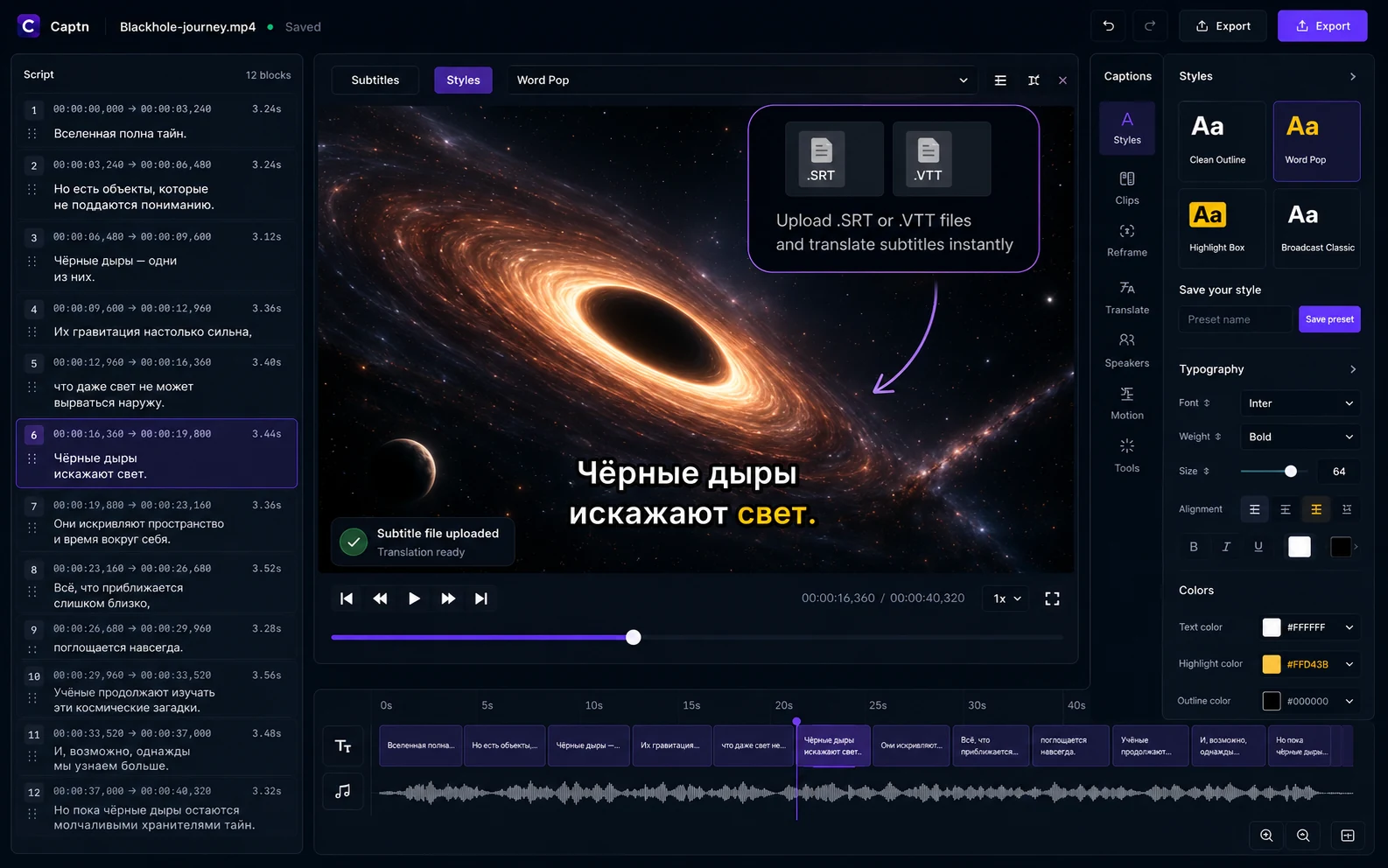
Start by uploading a video, import your SRT or VTT file, sync the subtitles against playback, style the captions and export a captioned MP4 or cleaned subtitle file.
How it works
This workflow starts with subtitles you already have. The job is to import, sync, style and export them with the right video.
Upload the video that should use your existing subtitle file.
Add your SRT file, or import VTT if your workflow uses that format.
Adjust subtitle timing, fix text, split long lines or merge short blocks.
Choose readable fonts, colors, outlines, backgrounds, placement and highlights.
Export a captioned MP4, or download the cleaned SRT/VTT file again.
Sync and repair
Captn is useful when the SRT file exists, but the video still is not ready. Import the subtitles, review them against playback, fix sync issues, style the captions and export a publish-ready result.
Open the EditorExport options
The main decision is whether the imported subtitles should become part of the final MP4 or stay as a cleaned subtitle file.
Render the imported subtitles into the video after timing and style are checked.
Export a corrected SRT file after fixing text, line breaks and timing.
Export or import VTT for web players, learning platforms and browser video.
Use caption styling when the imported subtitle file needs to become a visual layer in the MP4.
Caption styling
Imported SRT text does not have to look plain. Pick a caption preset, tune fonts and colors, add outlines or backgrounds and preview the final caption style before rendering the MP4.
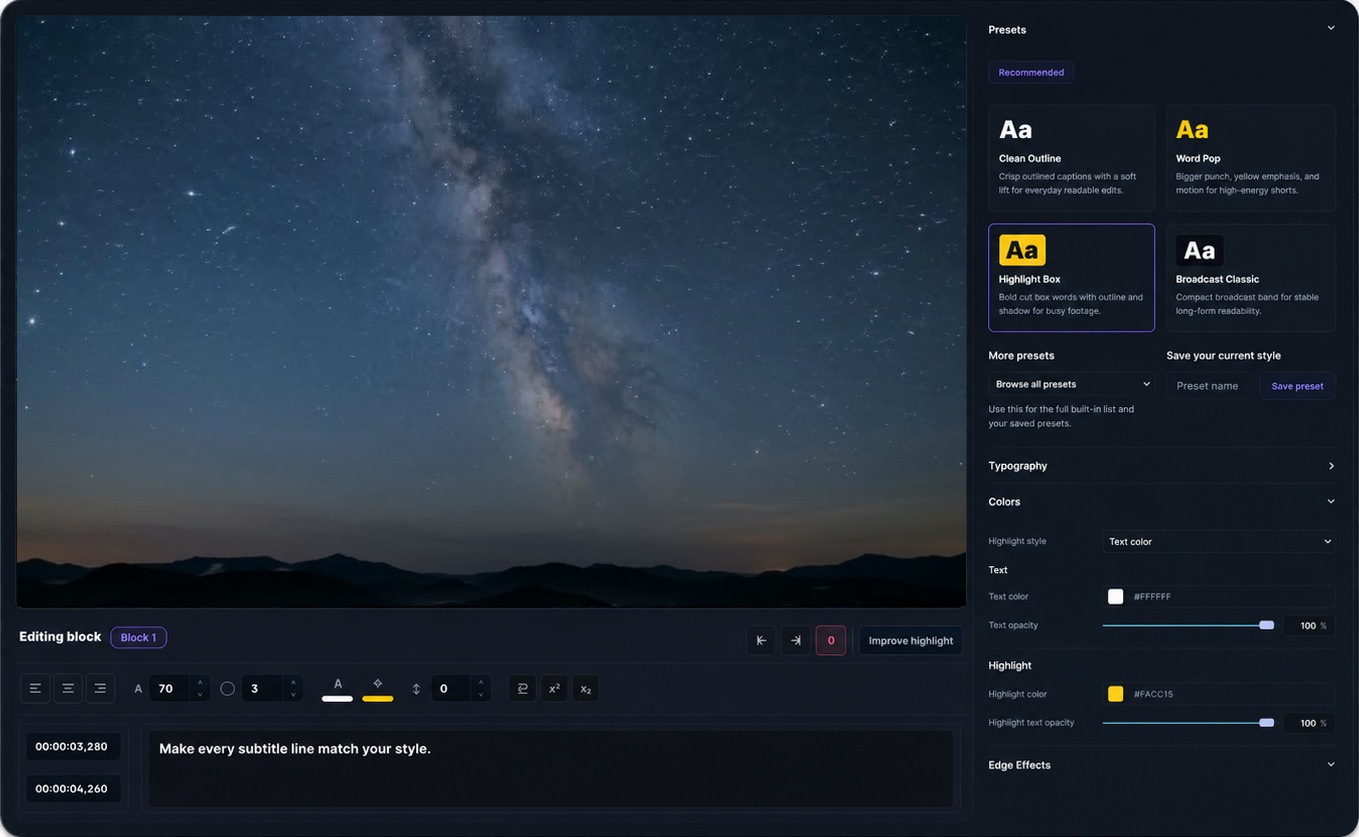
Imported captions can still be styled.
SRT to captioned video
Upload the video and subtitle file together, then use the same project to style captions, export a captioned MP4, or download revised SRT and VTT files.
Add SRT to VideoUse cases
Use this page when the transcript work is already done somewhere else, but the subtitle file still needs syncing, styling, or export with the final video.
Add SRT subtitles to a video and export either a captioned MP4 or a clean subtitle file.
Import lesson SRT files, fix timing issues and export cleaned subtitle files or captioned lesson videos.
Bring in subtitle files from recorded webinars, repair sync and export a readable replay video.
Import subtitle files for walkthroughs and turn them into polished captioned videos for clients or launches.
Import translated SRT or VTT files, check how they read on the video and export the final captioned version.
Take an existing subtitle file and restyle it for short-form exports where captions must stay visible.
Add imported subtitle files to tutorials and demos, then sync them against the recording before export.
FAQ
Quick answers about adding SRT to video for free, syncing subtitles, styling captions, and exporting a captioned MP4.
Yes. You can start free, upload a video, import an SRT file, edit and style the subtitles, and export the result. Free upload and export limits apply.
Yes. Captn can render imported subtitles directly into the video so the captions stay visible on any platform.
Yes. Use fonts, colors, outlines, shadows, background boxes, placement controls and word highlights before exporting the video.
Yes. After editing and timing fixes, you can export a clean SRT file from the same project.
Yes. Upload your video, import the SRT file, check the subtitles against playback, then export a captioned MP4 or cleaned subtitle file.
Yes. You can adjust subtitle block timing, split or merge blocks, edit text and preview the result before export.
Yes. Captn supports importing SRT and VTT files, then exporting a captioned video or cleaned subtitle files.
Captn is built around preview and export parity, so caption placement, wrapping, styling, and highlights are designed to stay aligned.

Start a project